> ## Documentation Index
> Fetch the complete documentation index at: https://help.eeva.ai/llms.txt
> Use this file to discover all available pages before exploring further.
# eeva chat
> Chat with eeva about your home! Ask questions, braindump, or start a repair, and confirm anything before it's saved.
eeva chat is your home assistant. Ask about your appliances and warranties, dump a pile of thoughts and let eeva sort them, or kick off a repair. eeva never creates or changes anything without showing you the details and asking first. It's the tab in the centre of the bottom navigation bar.
 ## Open the chat
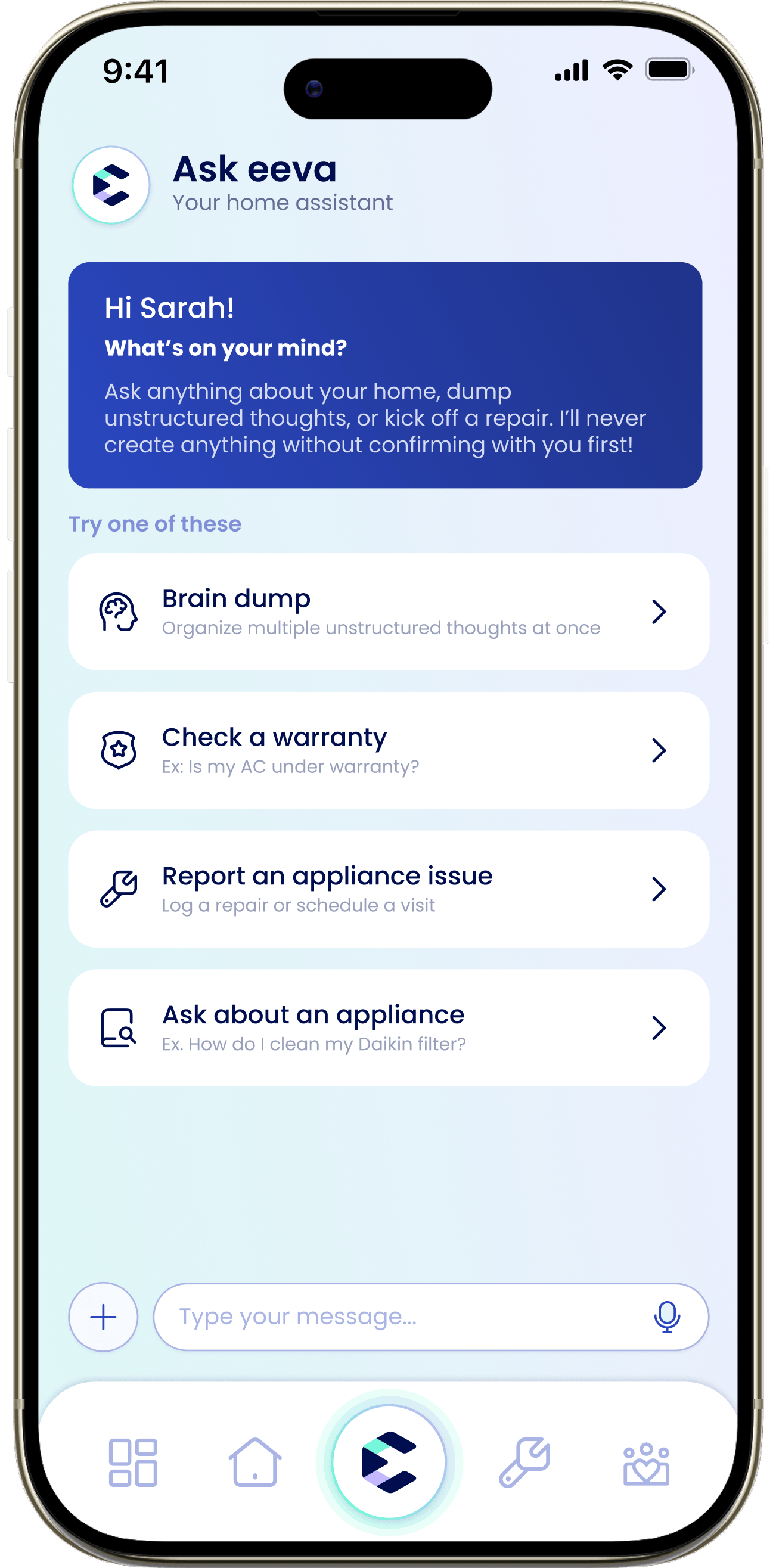
Tap the center eeva chat tab. The header reads "Ask eeva" / "Your home assistant", and a welcome card greets you. Type in the chat bar (placeholder "Type your message...") or tap a suggestion.
The status line shows "Online" or "Offline · Check your connection" if you've lost network.
## What you can ask
Under "Try one of these" you'll find starting points:
Type or talk out what's on your mind and eeva automatically creates and saves items for you.
For example, "Is my AC under warranty?" to check a warranty status
Log a repair or schedule a visit for an appliance.
For example, "How do I clean my Daikin filter?" and eeva will pull instructions from the manual we have on file
## eeva confirms before creating
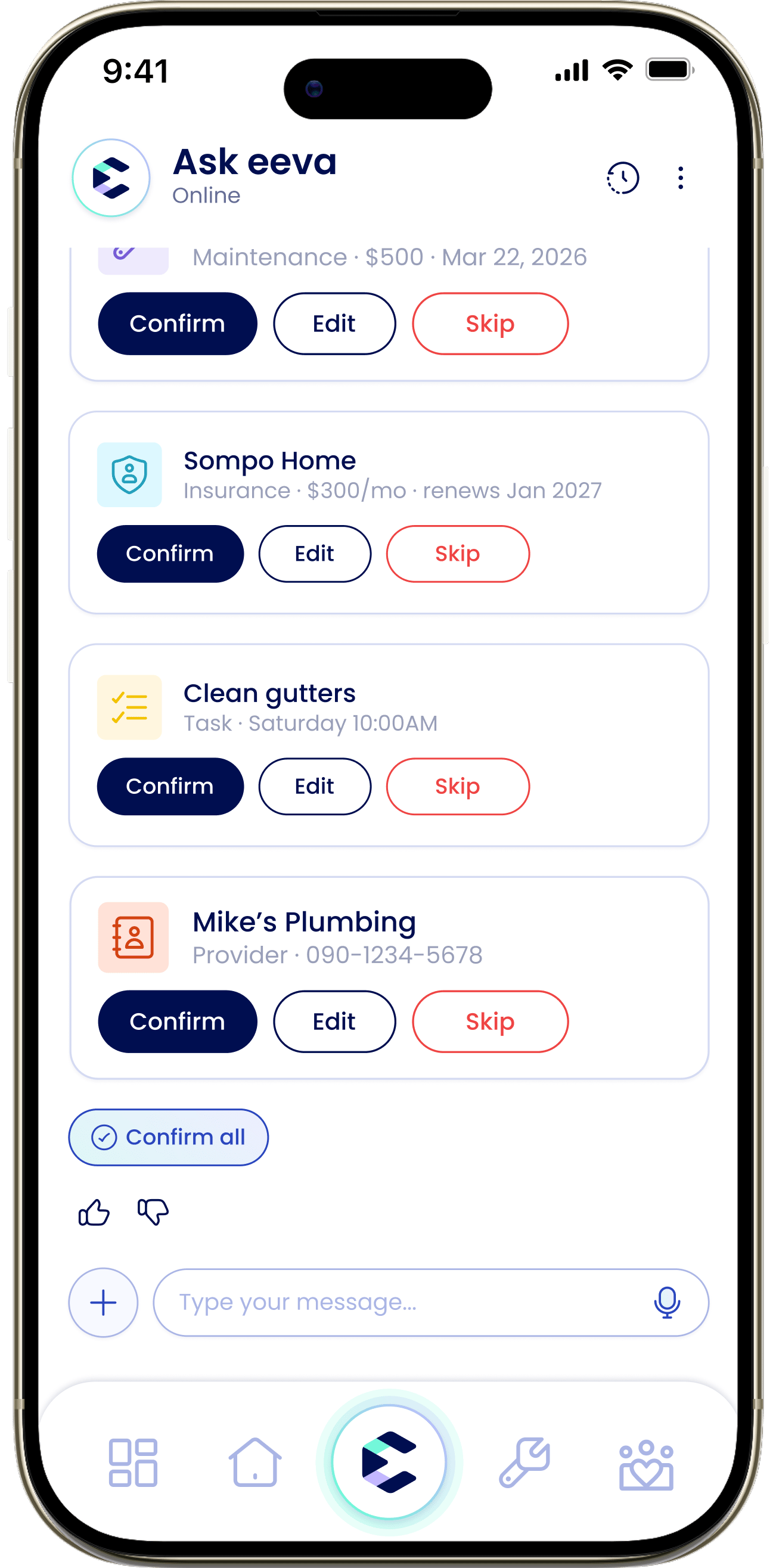
This is the core promise: eeva never saves a record without your say-so. When eeva wants to add a repair, maintenance entry, task, appliance, or warranty, it shows an action card with the details and three buttons:
Saves it. You'll then see "Added" and an "Open" button to jump to it.
Adjust the details before saving.
Discard it without saving.
## Open the chat
Tap the center eeva chat tab. The header reads "Ask eeva" / "Your home assistant", and a welcome card greets you. Type in the chat bar (placeholder "Type your message...") or tap a suggestion.
The status line shows "Online" or "Offline · Check your connection" if you've lost network.
## What you can ask
Under "Try one of these" you'll find starting points:
Type or talk out what's on your mind and eeva automatically creates and saves items for you.
For example, "Is my AC under warranty?" to check a warranty status
Log a repair or schedule a visit for an appliance.
For example, "How do I clean my Daikin filter?" and eeva will pull instructions from the manual we have on file
## eeva confirms before creating
This is the core promise: eeva never saves a record without your say-so. When eeva wants to add a repair, maintenance entry, task, appliance, or warranty, it shows an action card with the details and three buttons:
Saves it. You'll then see "Added" and an "Open" button to jump to it.
Adjust the details before saving.
Discard it without saving.
 ## What's private and what's shared
Your chat is private to you. Other household members can't see your conversation.
Anything you confirm into a record—an appliance, repair, task, warranty, and so on—becomes part of your shared household data, so everyone in the household sees the record even though they don't see the chat.
Chat conversations aren't kept as a permanent transcript; the records you create are what persist.
## Braindump
Have several things on your mind? Speak or type them all at once and eeva will organize them into tasks and records within confirmation cards, so you review them one by one before saving them. You can braindump by voice, too. See [Voice input](/05-ask-eeva/voice-input).
## Answers cite the manual
When eeva answers a question about one of your appliances, it backs the answer with source citations in tappable chips, like "Bosch Manual · pg. 12". Tap one to open the exact manual page the answer came from, so you can check the source yourself.
## Record lists
Ask about things you already have, like "any pending repairs?", and eeva shows a list of matching records. Tap any item to open it.
## Feedback
Every answer has a thumbs up and thumbs down. Tapping thumbs down opens "What went wrong?" so you can tell eeva how the answer missed. You can also long-press any message to Copy, Retry, or Report it.
## Clear the chat
Open the ⋮ menu, choose "Chat settings", then "Clear the chat". eeva confirms: "Clear the chat? Repairs, warranties, and recalls you've confirmed will stay in your records. The chat itself can't be recovered."
Clearing removes the conversation for good and it can't be recovered. Anything you already confirmed (repairs, warranties, recalls) stays safe in your records.
The ⋮ menu also has "Get help with the chat feature".
## Related
This documentation is built and hosted on [Mintlify](https://mintlify.com), a developer documentation platform.
## What's private and what's shared
Your chat is private to you. Other household members can't see your conversation.
Anything you confirm into a record—an appliance, repair, task, warranty, and so on—becomes part of your shared household data, so everyone in the household sees the record even though they don't see the chat.
Chat conversations aren't kept as a permanent transcript; the records you create are what persist.
## Braindump
Have several things on your mind? Speak or type them all at once and eeva will organize them into tasks and records within confirmation cards, so you review them one by one before saving them. You can braindump by voice, too. See [Voice input](/05-ask-eeva/voice-input).
## Answers cite the manual
When eeva answers a question about one of your appliances, it backs the answer with source citations in tappable chips, like "Bosch Manual · pg. 12". Tap one to open the exact manual page the answer came from, so you can check the source yourself.
## Record lists
Ask about things you already have, like "any pending repairs?", and eeva shows a list of matching records. Tap any item to open it.
## Feedback
Every answer has a thumbs up and thumbs down. Tapping thumbs down opens "What went wrong?" so you can tell eeva how the answer missed. You can also long-press any message to Copy, Retry, or Report it.
## Clear the chat
Open the ⋮ menu, choose "Chat settings", then "Clear the chat". eeva confirms: "Clear the chat? Repairs, warranties, and recalls you've confirmed will stay in your records. The chat itself can't be recovered."
Clearing removes the conversation for good and it can't be recovered. Anything you already confirmed (repairs, warranties, recalls) stays safe in your records.
The ⋮ menu also has "Get help with the chat feature".
## Related
This documentation is built and hosted on [Mintlify](https://mintlify.com), a developer documentation platform.