

Open your policies
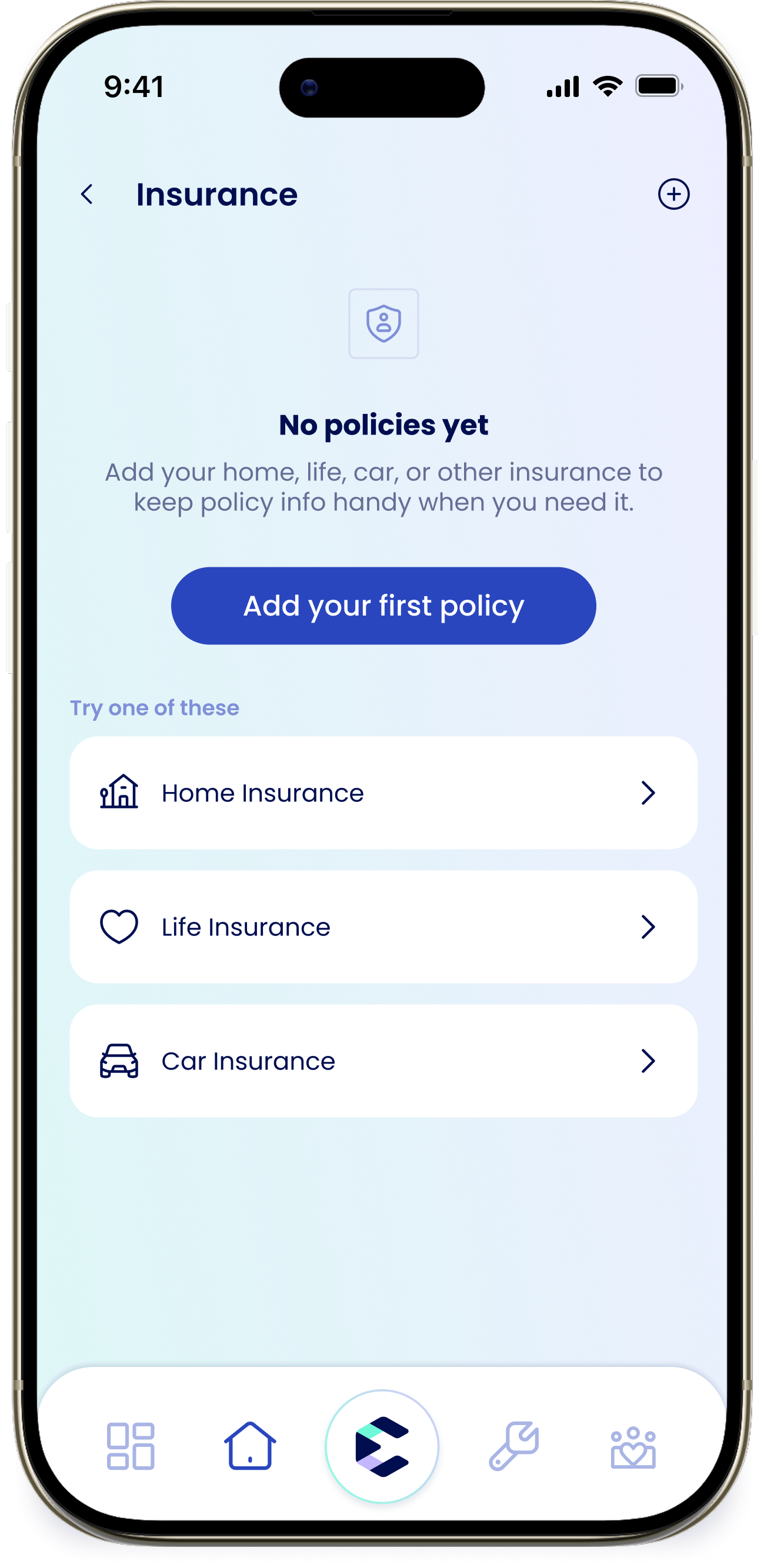
From the House tab, tap the “Insurance” card. If you haven’t added anything, you’ll see “No policies yet” with “Add your first policy” and suggestions for “Home Insurance”, “Life Insurance”, and “Car Insurance”. Tap the + to add one.Add a policy
You can let eeva fill in the details from your policy document, or type them in yourself.1
Start a new policy
Tap + to open “Add Insurance Policy”.
2
Upload the document (optional)
Upload the policy document first and eeva fills in the details for you — “Upload policy document and we’ll fill in the details for you” (JPG, PNG or PDF). eeva reads the document and pre-fills what it can; anything it isn’t fully sure about is flagged “Please review” so you can check it before saving. You can skip this and type everything in instead.
3
Fill in the details
Only two fields are required: “Carrier” and “Insurance type” (Home, Life, Car, Health, or Other). Everything else is optional — “Policy number”, coverage summary, “Start date”, “Renewal date”, premium and payment frequency, and the “Auto Renew” toggle.Type-specific details are optional too, and vary by policy: property address (Home), beneficiaries (Life), vehicle information (Car), and member ID (Health).
4
Save
Tap “Save policy”.
The details eeva tracks depend on the policy type. A home policy can hold the property address and coverage amount, a life policy can hold beneficiaries, an auto policy can hold the vehicle, and a health policy can hold a member ID. Everything beyond the basics is optional.