

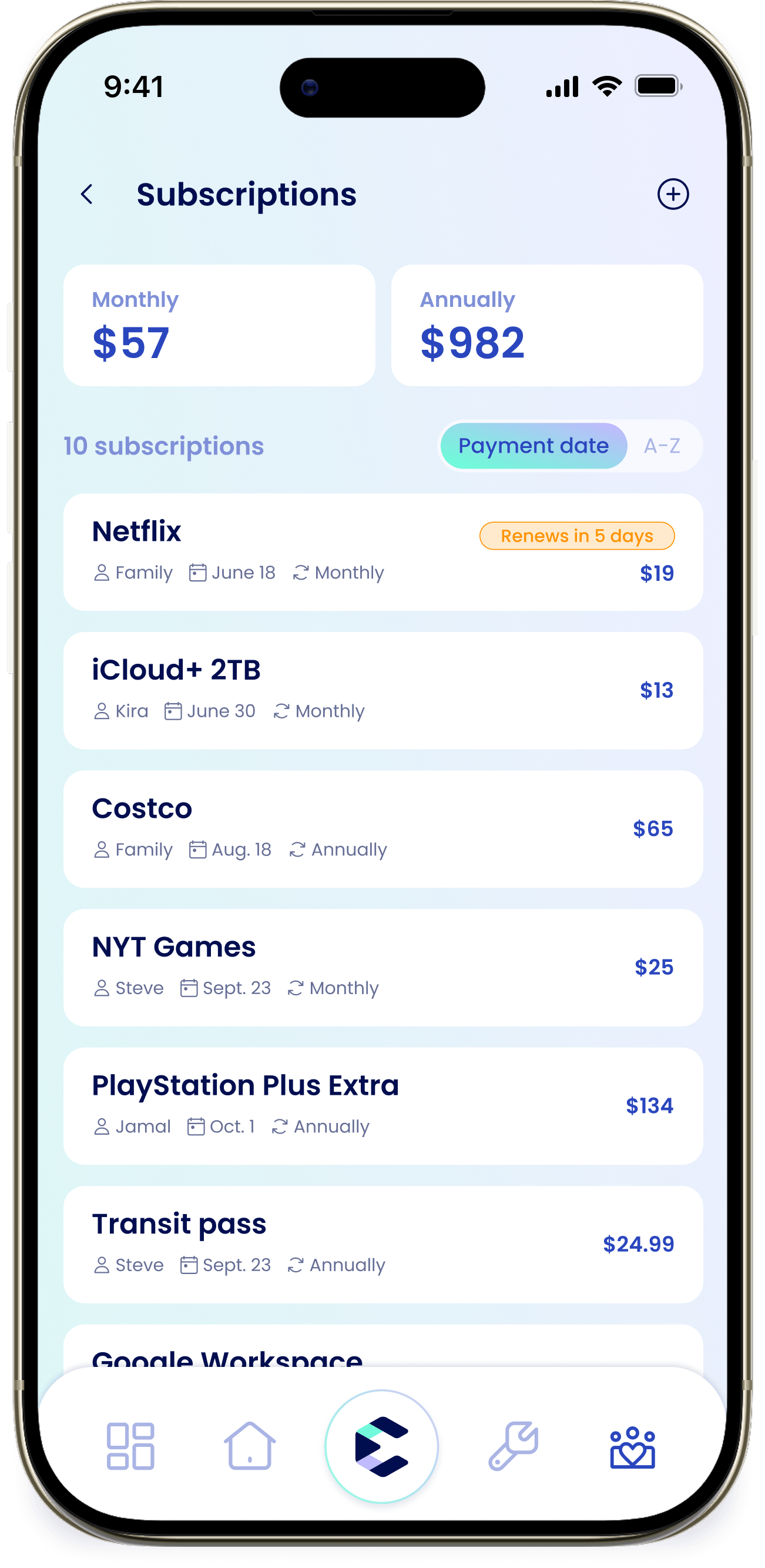
This is for the subscriptions you pay for, like Netflix or a gym membership. It has nothing to do with billing for the eeva app itself.
Open your subscriptions
Go to the Household tab and open the “Subscriptions” section. At the top, the “Monthly” and “Annually” cards show your totals. You can sort rows by “Payment date” or “A-Z”. Each row shows the service, its renewal date, the cycle (“Monthly” or “Annual”), the amount, and a renewal pill — “Renews today” or “Renews in N days”. Tap the + to add one. If you haven’t added anything yet, you’ll see “You have no subscriptions yet!” with the note “Track what you pay for monthly or annually. eeva keeps the renewal dates handy so you’re not surprised.”Add a subscription
1
Start a new subscription
Tap + to open “New Subscription”.
2
Enter the provider
In “Subscription provider”, type the service name. The placeholder reads “Enter subscription provider”.
3
Enter the amount and cycle
Fill in “Amount”, and set whether it bills “/month” or “/year”.
4
Set the next billing date
Choose the “Next billing date” so eeva can count down to the renewal.
5
Choose who uses it (optional)
Under “Used by”, tap a member pill, or choose “Family” if the whole household shares it.
6
Add a reminder (optional)
Under “Reminder”, pick when to be nudged before a renewal: “1/3/7/14 days before”.
7
Save
Tap “Save”. The subscription joins your list and its amount counts toward your totals.
Fields marked with * — “Subscription provider”, “Amount”, and “Next billing date” — are required.