

Open your notifications
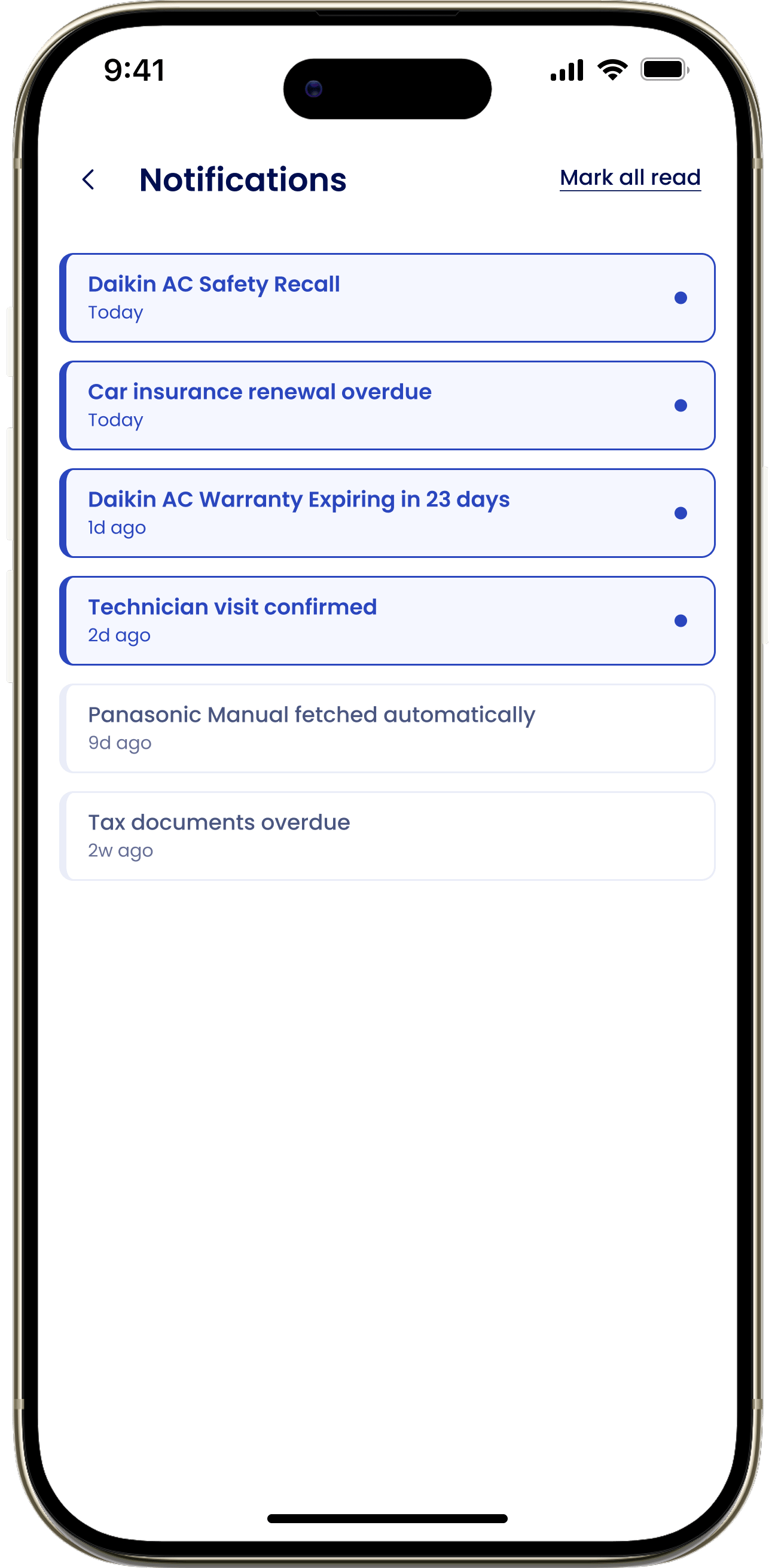
Tap the bell icon at the top of the Dashboard to open the Notifications screen. Rows you haven’t seen yet are highlighted with a blue dot.1
Tap the bell
Tap the notifications bell at the top of the Dashboard. A red dot means there’s something unread.
2
Read a notification
Tap any row to open it. Tapping a row marks it as read and the blue dot disappears.
3
Clear everything at once
Tap Mark all read to mark every notification as read without opening each one.
What you might see here
Safety recalls
On one of your appliances.
Warranties
Expiring or expired.
Insurance renewals
Coming up.
Repair status updates
Progress on a filed repair.
Overdue maintenance
Upkeep past its due date.
Subscription renewals
A service about to bill.
Manual found
A manual being found for one of your appliances.
Task reminders
Nudges for household tasks.
History vs. preferences
This screen is a log — it shows notifications you’ve already received. It doesn’t control what triggers a notification. To change what you get notified about — safety recalls, warranty alerts, repair updates, maintenance reminders, quiet hours, and channels like LINE — go to Notification preferences in Settings.Marking a notification read here only clears it from your history. It doesn’t turn off future notifications of that kind — do that in Notification preferences.