

Connect LINE
Under Messaging, connect LINE to receive eeva notifications there.1
Open Integrations
Tap your profile avatar on the Dashboard to open Settings, then tap Integrations under Preferences.
2
Connect LINE
Under Messaging, tap Connect next to LINE and follow the prompts to link your account.
Connect a calendar
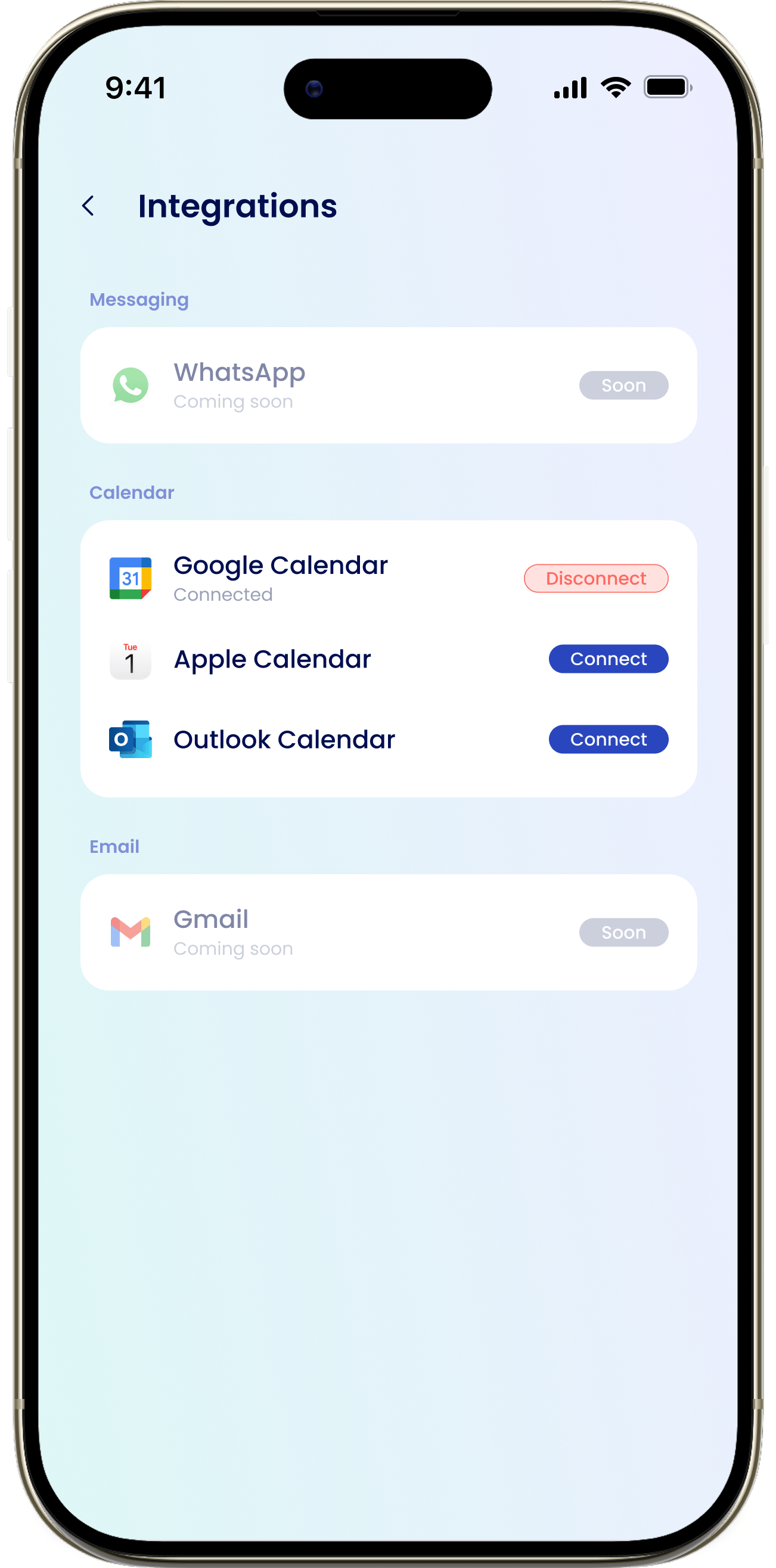
You can link one calendar at a time so eeva’s tasks, maintenance, and repairs show up on your schedule. Choose from Google Calendar, Apple Calendar, or Outlook Calendar. The connected one shows Disconnect.1
Pick a calendar
Under Calendar, tap the one you use — Google, Apple, or Outlook.
2
Sign in and authorize
Follow the prompts to connect. For Apple Calendar, you’ll need an app-specific password — “Generate an app-specific password at appleid.apple.com” and paste it in.
3
Switch later if needed
To move to a different calendar, tap another option. eeva asks “Switch calendar?” before changing.
Only one calendar can be connected at a time. Connecting a new one replaces the current connection.
Coming soon
Some integrations aren’t available yet:- WhatsApp (Messaging) — marked “Soon”.
- Gmail (Email) — marked “Soon”.
- Retail Partners — currently “No retailer connected”.