

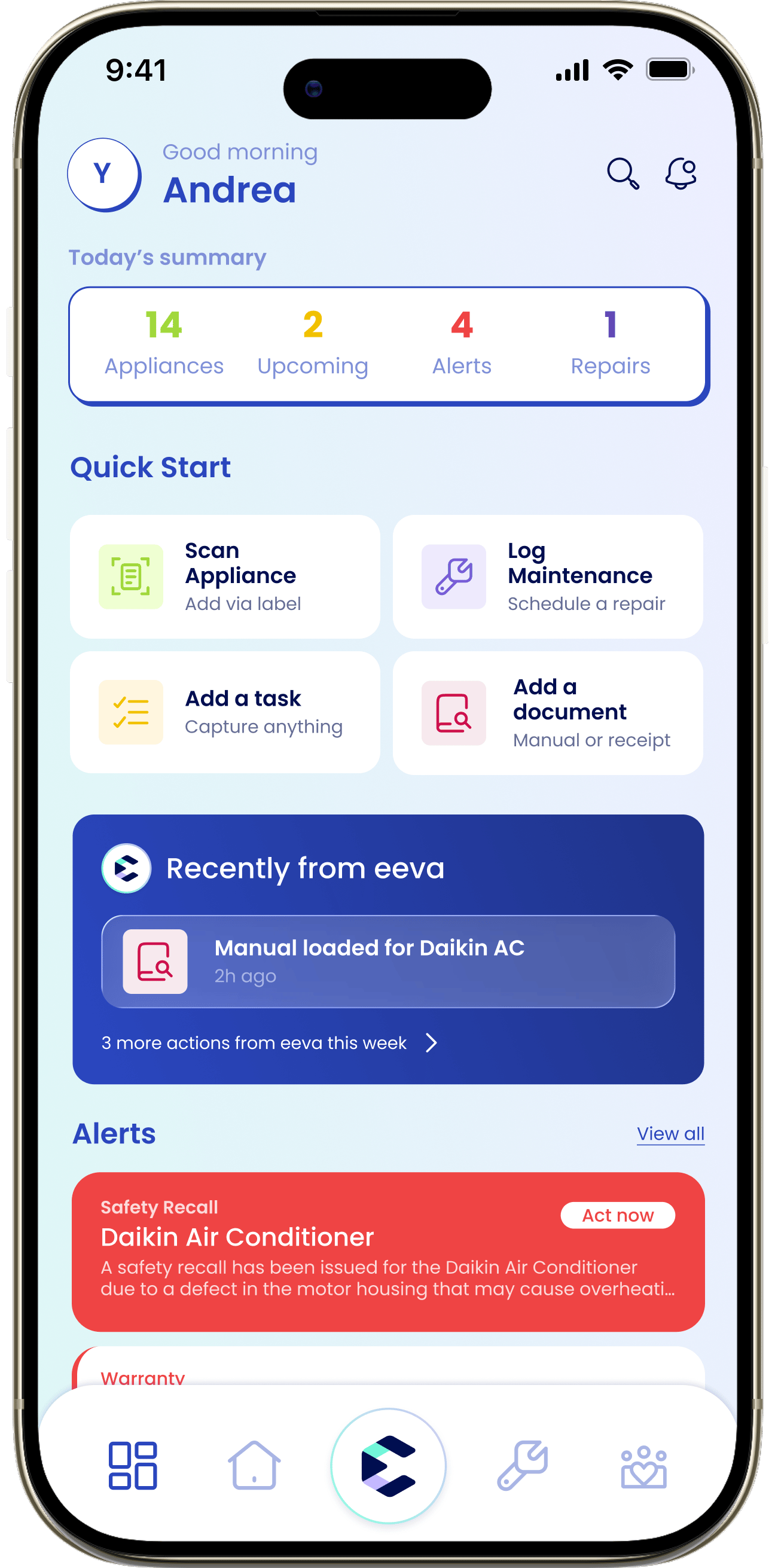
The top bar
At the top of the Dashboard you’ll see:- Your profile photo in the top-left — your first initial or photo. Tap it to open Settings.
- A greeting — “Good morning”, “Good afternoon”, or “Good evening” with your first name, depending on the time of day.
- A search icon — opens Search across everything in your home.
- A notifications bell — opens your notification history. A red dot means you have something unread.
Today’s summary
A row of stat tiles gives you the current state of your home at a glance:Appliances
How many you’re tracking.
Upcoming
Tasks, maintenance, and repairs on the horizon.
Alerts
Items that need attention now.
Repairs
Repairs in progress.
Quick Start
The Quick Start grid is the fastest way to add something. Each action opens the right flow:Scan Appliance
Add an appliance from its label.
Log Maintenance
Record upkeep or book a repair.
Add a task
Jot a household task or note.
Add a document
Save a manual or receipt.
Ask eeva
Below Quick Start you’ll see an Ask eeva card asking “What’s on your mind about your home?”, or a Recently from eeva card if you’ve chatted before. Tap it to open the AI assistant and ask about your home in plain language, by typing or recording your voice with the microphone. Here’s the full guide to the eeva chat.Alerts and upcoming activities
Further down are two sections that fill in as your home has activity:Alerts
Important items like safety recalls and warranties about to expire. When there’s nothing, it reads “Important alerts will show up here!”
Upcoming Activities
Tasks, maintenance, and repairs on the way. When empty: “Upcoming tasks, maintenance, and repairs will show up here!”