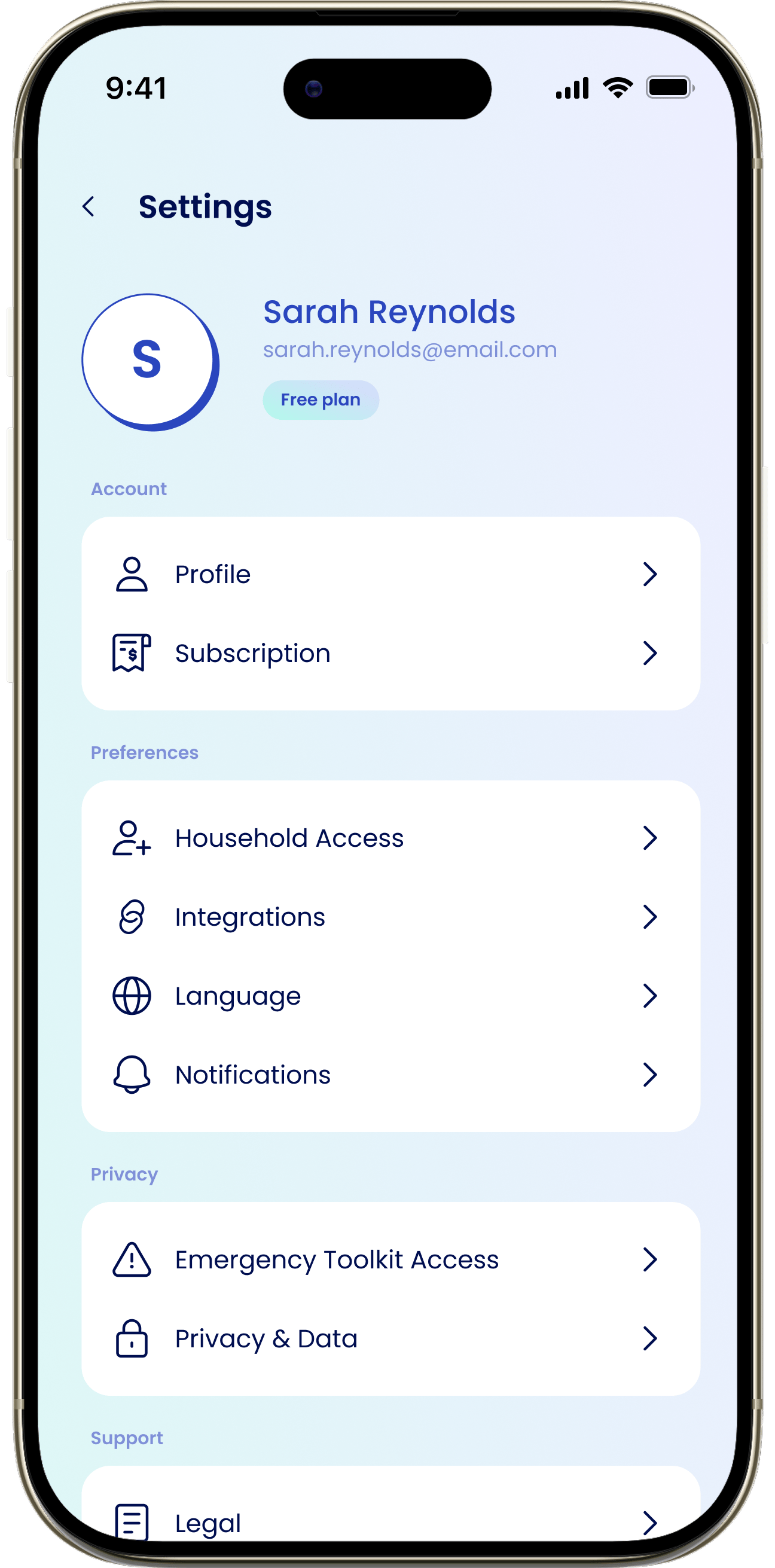
Open Settings
Settings isn’t a tab. It lives behind your profile avatar.1
Go to the Dashboard
Tap Dashboard, the first tab in the bottom bar.
2
Tap your avatar
Tap your profile avatar — your first initial or photo — in the top-left corner. This opens Settings.
3
Open Profile
Tap the profile card at the top of Settings (your name, email, and plan badge), or the Profile row under Account.
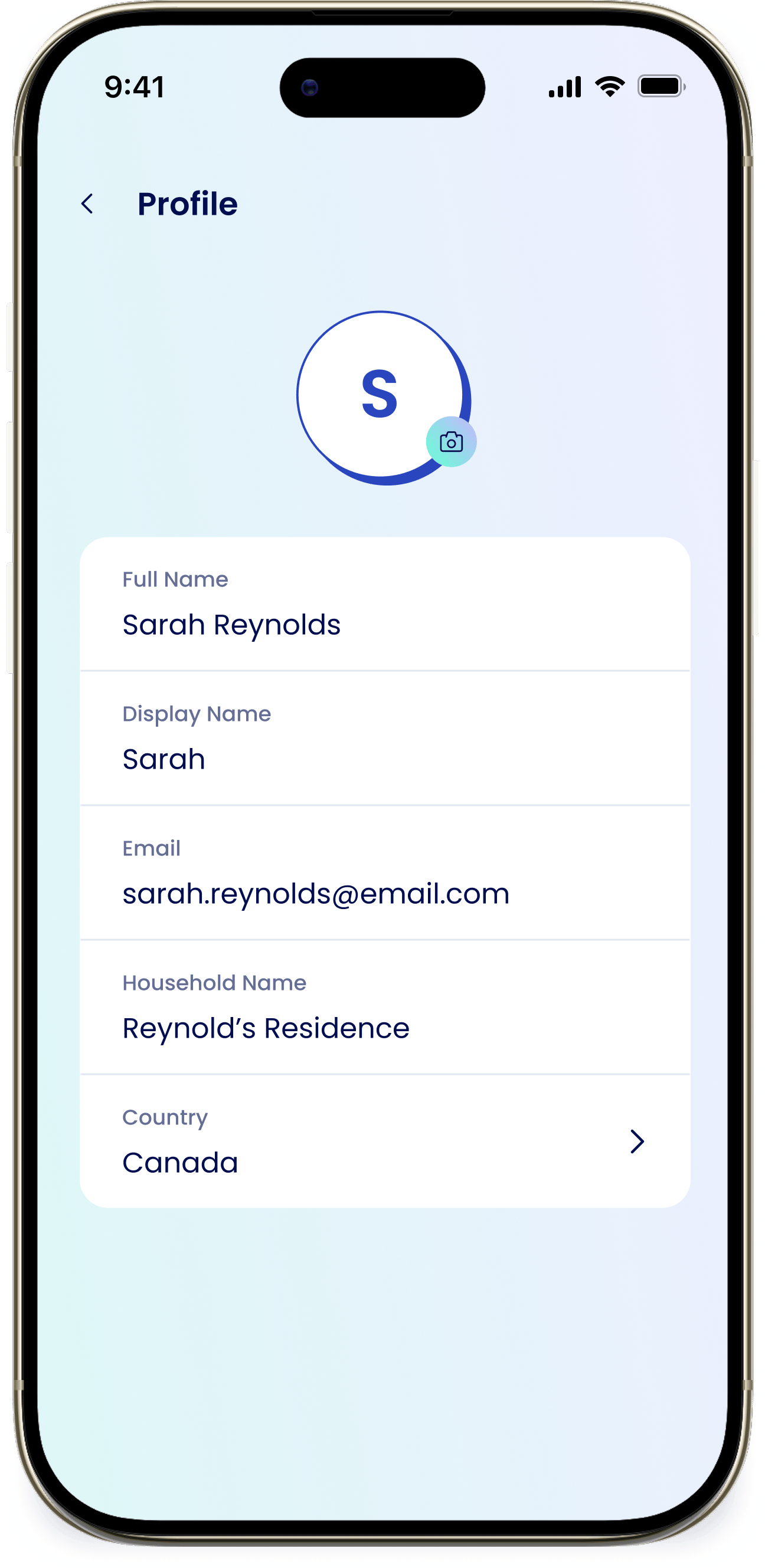
Edit your profile
On the Profile screen you can update:- Full Name
- Display Name — how you appear to other household members.
- Email — read-only; you can’t change it here.
- Household Name
- Country
There’s no save button. Your changes save automatically when you leave the Profile screen.
Change your photo
Tap the avatar with the camera badge and choose Take Photo or Choose from Library. Your new photo becomes the avatar you see in the top-left of the Dashboard.