

Log a maintenance task
1
Start a new entry
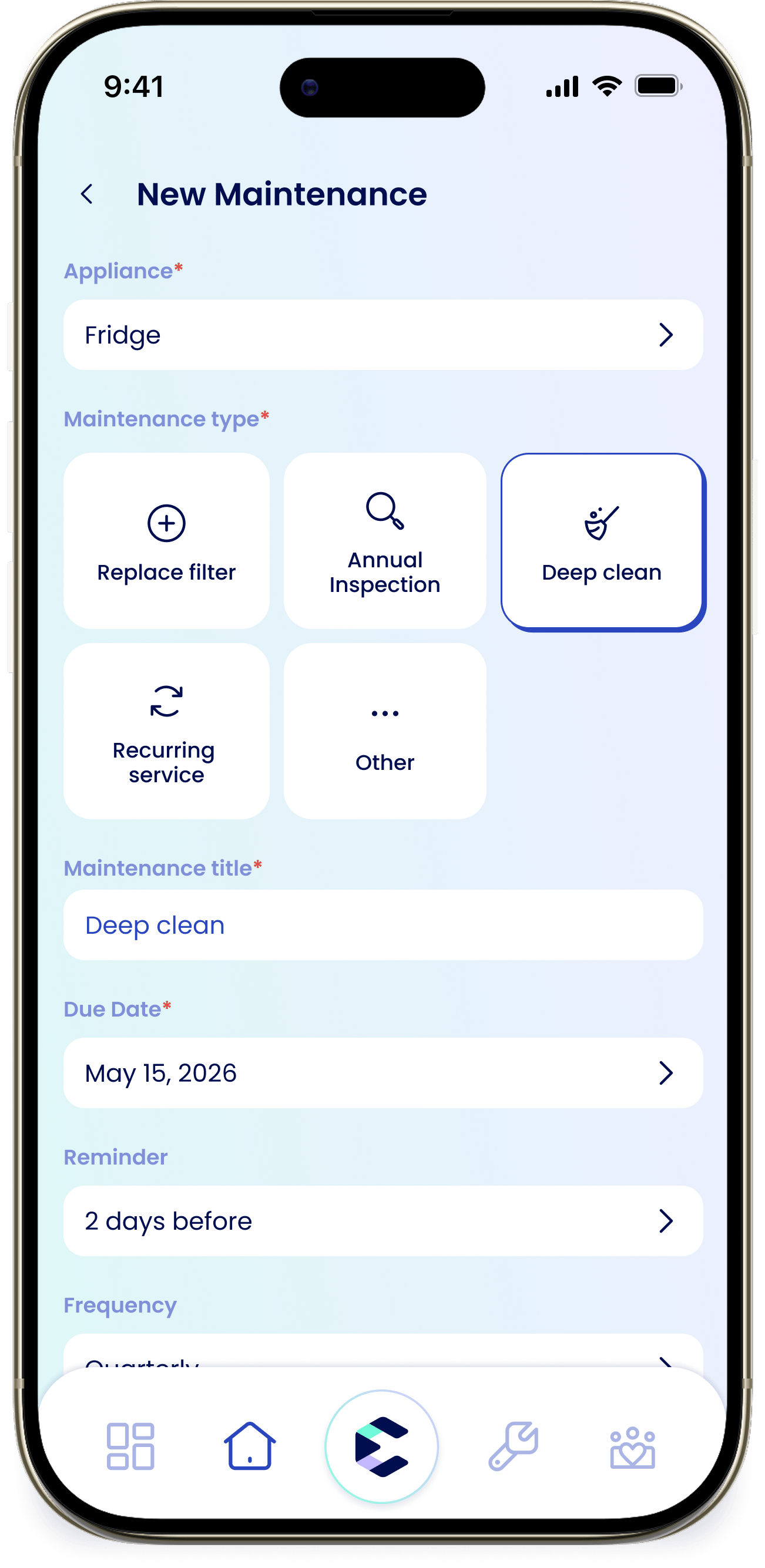
On the Maintenance tab, tap the Log maintenance pill — or open the Maintenance Log and tap +, then choose Log maintenance and Continue.
2
Pick the appliance
Tap Appliance and select the appliance this task is for.
3
Choose a maintenance type
Tap a Maintenance type tile: Replace filter, Annual inspection, Deep clean, Recurring service, or Other. eeva fills in a Maintenance title for you; for Other, enter your own Custom type title.
4
Set the due date
Pick a Due Date for when the task should first happen.
5
Set the frequency
Choose a Frequency: One time, Monthly, Bi-Monthly, Quarterly, or Annually. Anything other than One time repeats automatically.
6
Add a reminder and notes (optional)
Under Reminder, choose No reminder, 1 day before, 3 days before, 7 days before, or 14 days before. Add anything useful under Notes.
7
Save
Tap Save. The task appears in your Maintenance Log.
Recurring tasks and calendar sync
When you pick a recurring frequency, eeva schedules each occurrence for you and syncs it to your connected calendar — you’ll see a note like “We’ll auto-schedule this every month & sync it to your calendar.” You only log it once; eeva handles the repeats.The maintenance detail
Tap any task in the log to open its detail. The Status check card shows the Status, Due date (editable), Frequency, Next occurrence, and Reminder — and a Mark as done button. Below that, Maintenance details lists Type, Appliance, Model Number, Room, and Cost, followed by Notes, Providers, Documents, and History. To change how often a task repeats, edit Frequency from the detail. The options are One time, Monthly, Bi-Monthly, Quarterly, and Annually.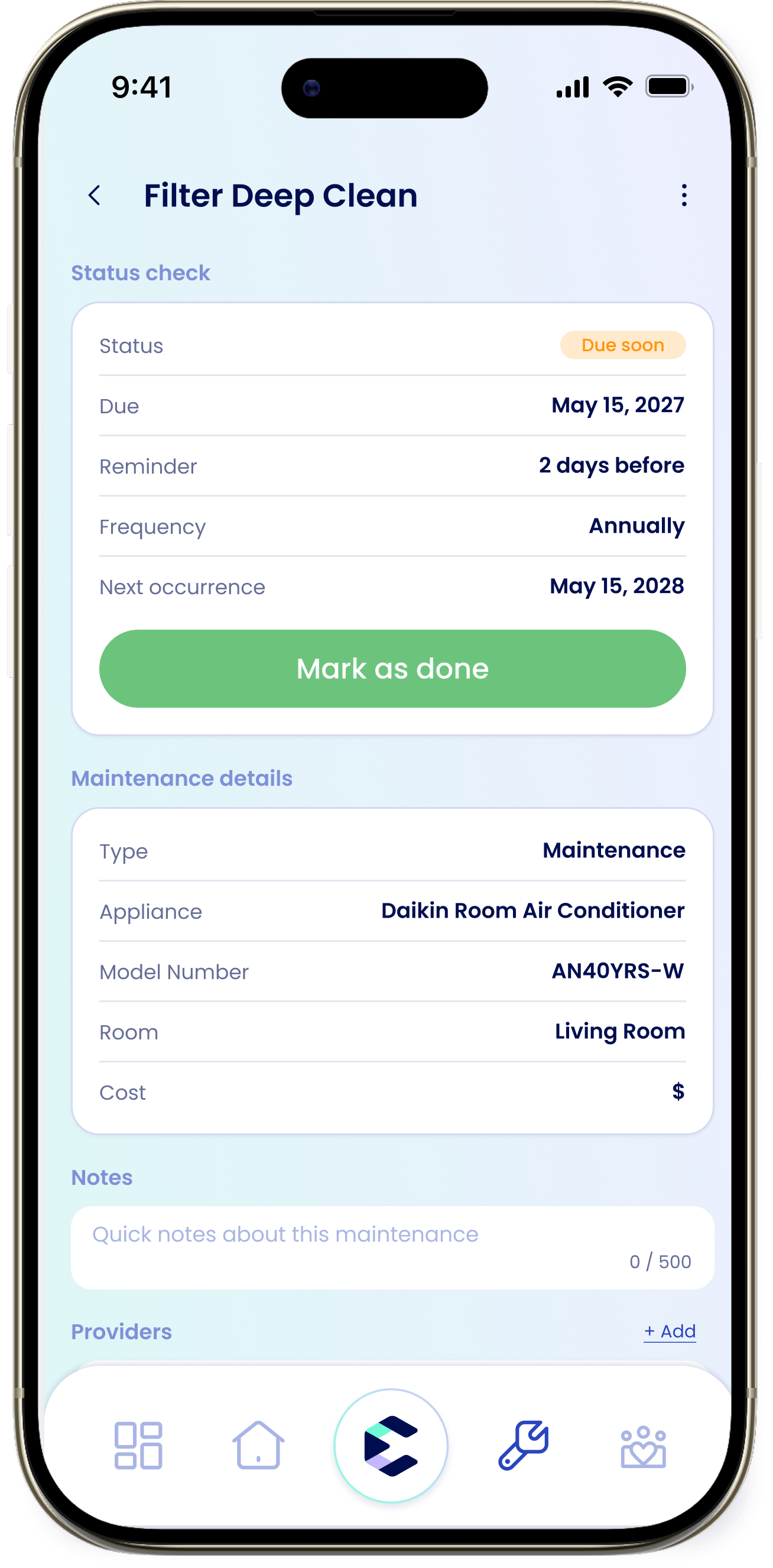
Archive vs. delete
Open the ⋮ menu on a maintenance detail for two options:Archive maintenance
Hides the task from your active list but keeps it. This is reversible — archived tasks show under the Archived filter in the log. Use this for something you’ve paused.
Delete entry
Removes the task permanently. This can’t be undone. Use archive instead if you might want it back.
Maintenance documents and planned cost are stored on your device.