

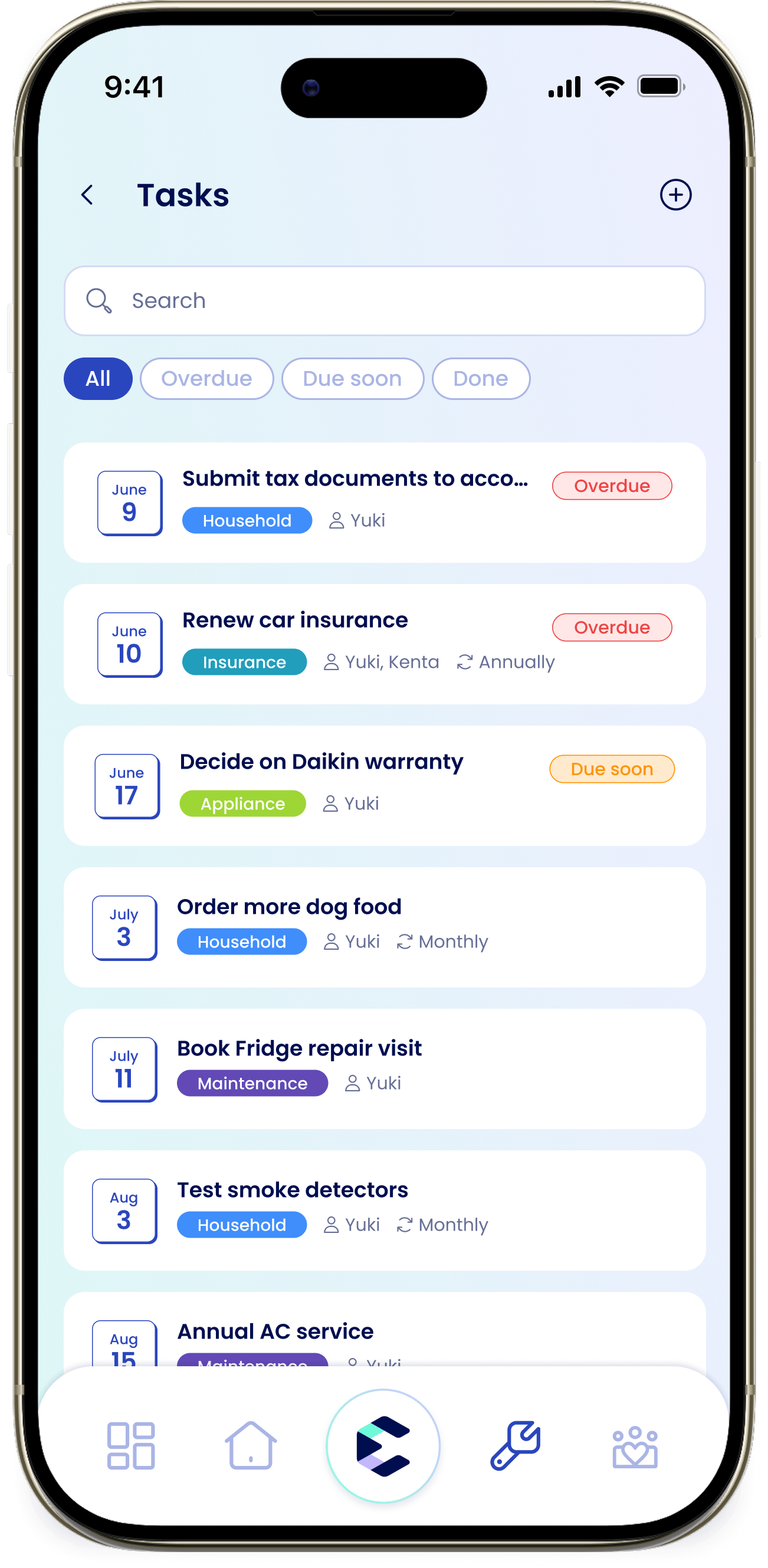
Open your tasks
Go to the Household tab and open the “Tasks” section. Tap View all to see everything. The list has a search field and filter pills: “All”, “Overdue”, “Due soon”, and “Done”. Each task shows an urgency pill: “Overdue”, “Due soon”, or “Done”. Tap the + to add one. If your home is brand new, the Household tab shows “Let’s get started!” with “Create a task” and “Add a subscription”. Tap “Create a task” to open the same form.Create a task
1
Start a new task
Tap + to open “New Task”.
2
Name it
In “Task title”, type what needs doing (for example, “Replace HVAC filter”). The placeholder reads “Enter a title”.
3
Assign to members
Under “Assign to”, tap the household member pills to choose who’s responsible. You can select more than one.
4
Pick a category
Tap “Category” to open the “Save to a category” sheet and choose one: “Appliances”, “Household”, “Insurance”, “Maintenance”, “Finance”, or “Other”.
5
Set a date and time
Choose a “Date” and a “Time” if the task is tied to a day.
6
Add a reminder
Under “Reminder”, pick when eeva should nudge you: “At time of event”, “5/10/15/30 minutes before”, “1/2 hours before”, “1/2 days before”, or “1 week before”.
7
Set how often it repeats
Under “Frequency”, keep “One time” for a single task, or pick “Weekly”, “Monthly”, “Bi-Monthly”, or “Annually” to make it recurring.
8
Add notes (optional)
Use “Notes” for any detail — a part number, a phone number, a reminder to yourself.
9
Save
Tap “Save”. The task appears in your list.
Fields marked with *, like “Task title”, “Assign to”, and “Category”, are required.